
Complete the shared settings first
Every tool needs the Windows settings and the General Settings before this guide.
Gemstone crab setup
Before starting
- Follow the Windows settings and complete the General Settings.
- Start near the Gemstone Crab.
- Equip your weapon.
- If using ranged combat, bring enough ammunition for the intended session.
- Choose the food and potions you intend to use in the tool, and supply those items. Select None explicitly if you do not intend to use a supply category.
- Set the tool's maximum HP value to your character's maximum HP, rather than current HP.
Health overlays
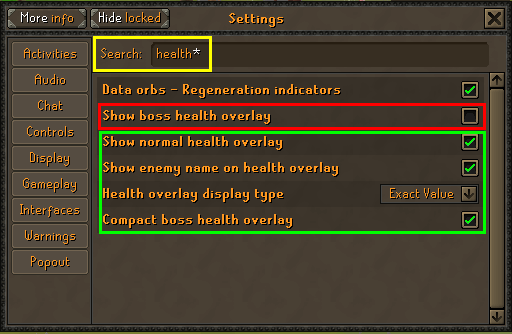
Set the health-overlay options as follows:
| Setting | Required value |
|---|---|
| Show boss health overlay | Off |
| Show normal health overlay | On |
| Show enemy name on health overlay | On |
| Compact boss health overlay | On |
 (opens in a new tab)
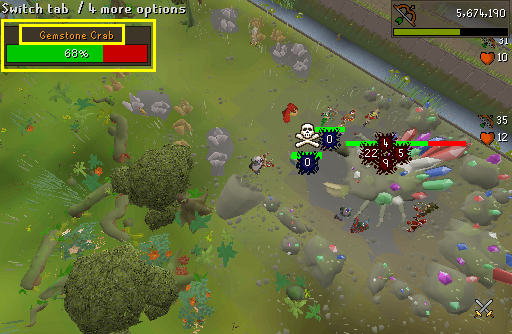
The enemy's name and normal health overlay should be visible during combat:
 (opens in a new tab)
Supplies
Choose food and potions before starting, and keep the selected supplies in your inventory.
| Category | Supported choices |
|---|---|
| Food | Monkfish, lobster, swordfish, salmon, cake (whole, two-thirds, or slice), or None |
| Potions | Super combat, super strength, super attack, ranging, or None |
Potion combinations may be selected in an order, such as super strength followed by super attack. Choose None explicitly when you do not want to use a category. Set maximum HP to your character's maximum HP.
Starting location
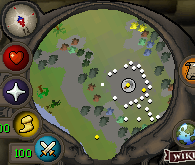
Start near the Gemstone Crab, in the area shown below. The player is at the centre of the minimap. This reference was cropped from a screenshot during a crab fight.
 (opens in a new tab)
Ready to try Gemstone crab?
Start free trial