
Windows
Windows display scaling
In the Windows display settings, set Scale to 100%.
Changed the scaling while the tool was open?
Close the game client and the tool, then restart them.
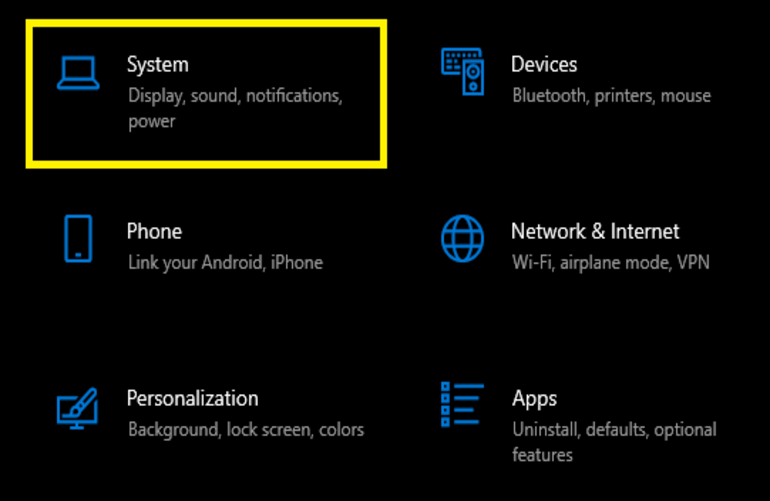 (opens in a new tab)
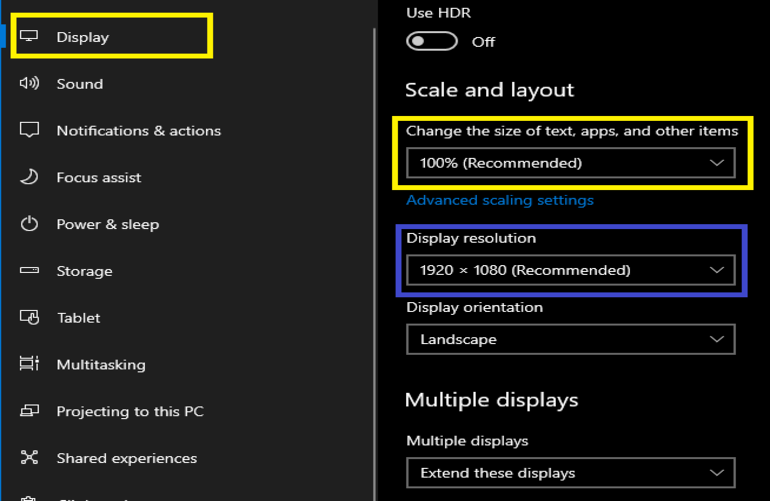 (opens in a new tab)
Game client
Brightness and client layout
Apply these game-client settings before using any of the tools. Client scaling below refers to the game setting, not Windows.
- Set brightness to the highest setting.
- Select Fixed Classic layout.
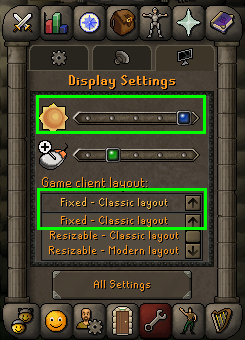 (opens in a new tab)
Client scaling
Set client scaling to 100%.
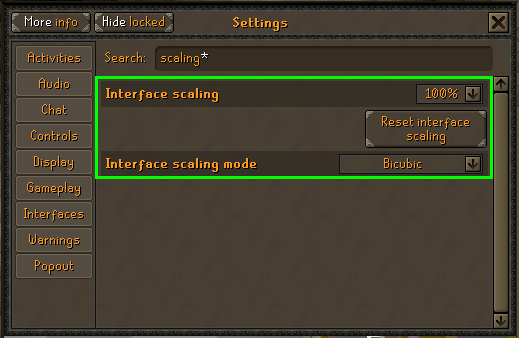 (opens in a new tab)
Mouse settings
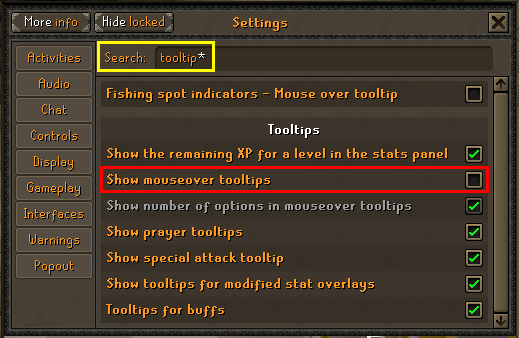
Turn Show mouseover tooltips off.
 (opens in a new tab)
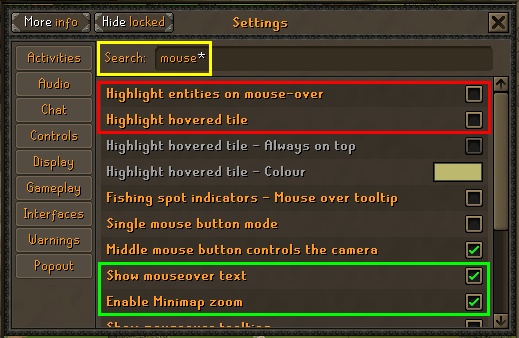
Set the remaining mouse and minimap options as follows:
| Setting | Required value |
|---|---|
| Highlight entities on mouse-over | Off |
| Highlight hovered tile | Off |
| Show mouseover text | On |
| Enable minimap zoom | On |
 (opens in a new tab)
Ground items
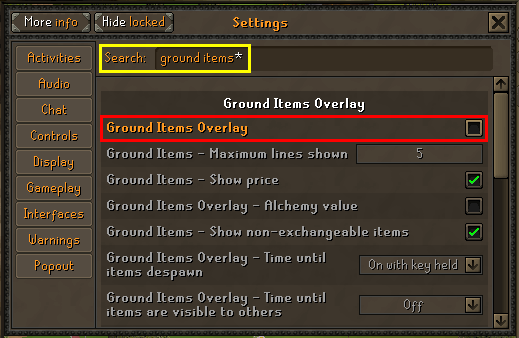
Turn Ground items overlay off.
 (opens in a new tab)
While a tool runs
During use
- Keep the game client visible and unobstructed.
- Focus the game for operation; focus loss pauses supported workflows.
- Use the tool's Stop control or F8 to stop it.
Step 2 of 2